MS SQL Server Install under Linux

Now you can install a MS SQL Server under Linux.

More here

https://docs.microsoft.com/en-us/sql/linux/sql-server-linux-setup

Following these Steps

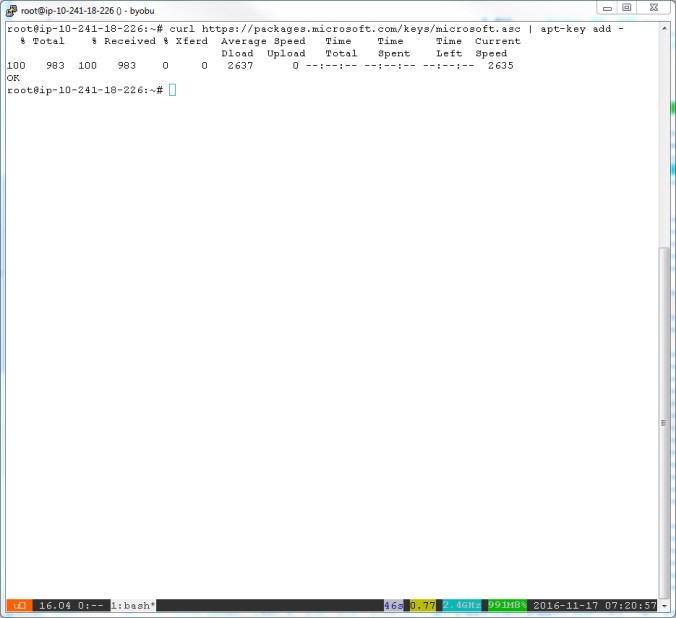
Import GPG Keys

curl https://packages.microsoft.com/keys/microsoft.asc | apt-key add –

mssqllinux1


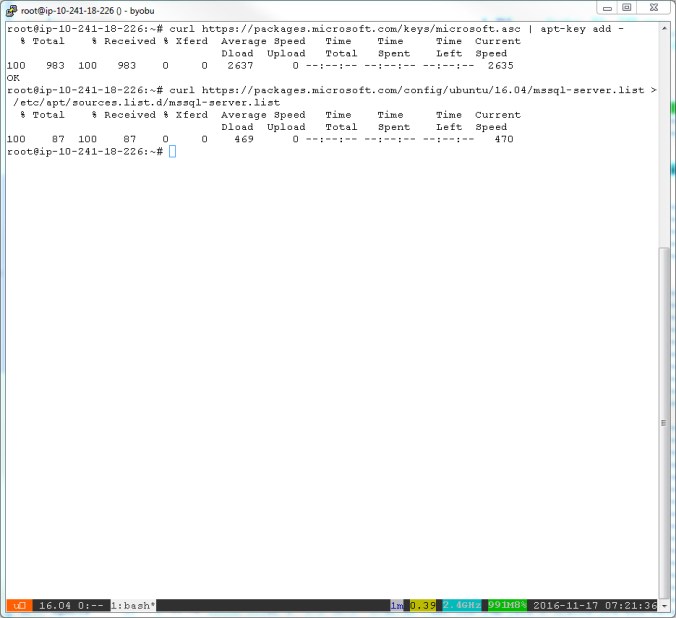
Add MS SQL Server to your Repository

curl https://packages.microsoft.com/config/ubuntu/16.04/mssql-server.list > /etc/apt/sources.list.d/mssql-server.list


mssqllinux2


Install MS SQL Server, Attention your Machine needs 4 GB of RAM

apt-get update
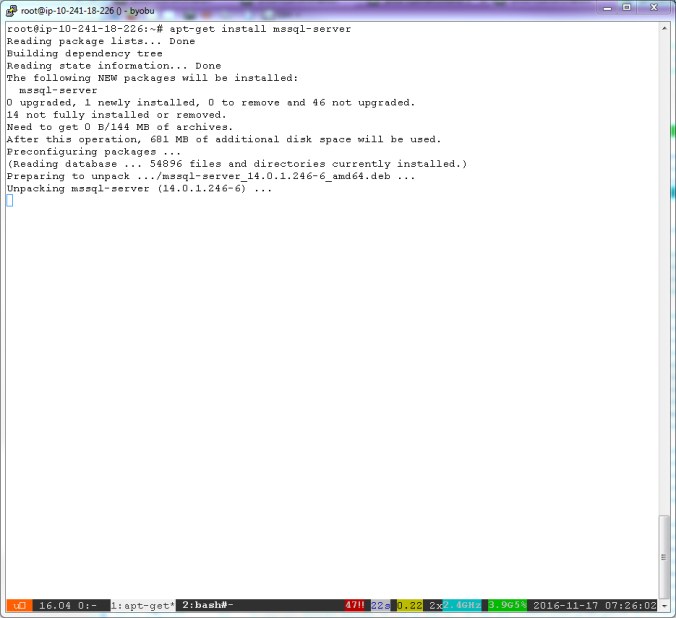
apt-get install mssql-server


mssqllinux3


mssqllinux4

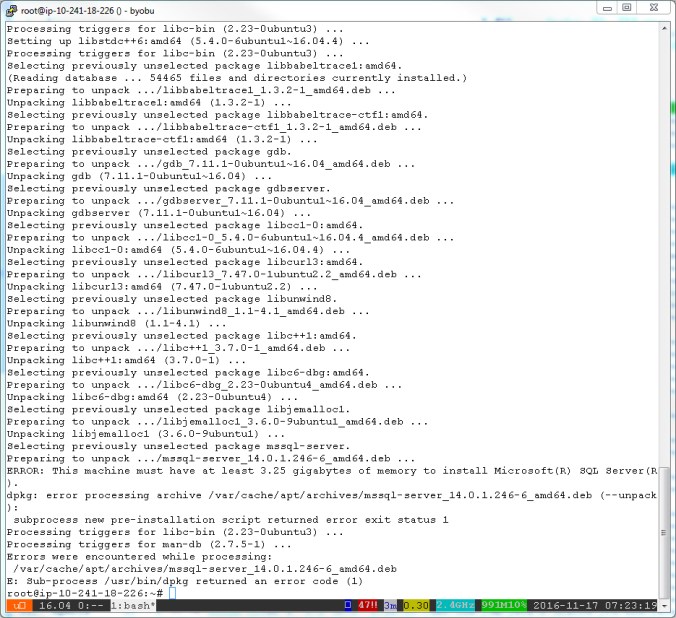
Installation is aborted, when you have less than 4 GB in your System

mssqllinux5

After Upgrading my Machine with more RAM, the installation is up and running

mssqllinux6


mssqllinux7


Start your MS SQL Server under Linux

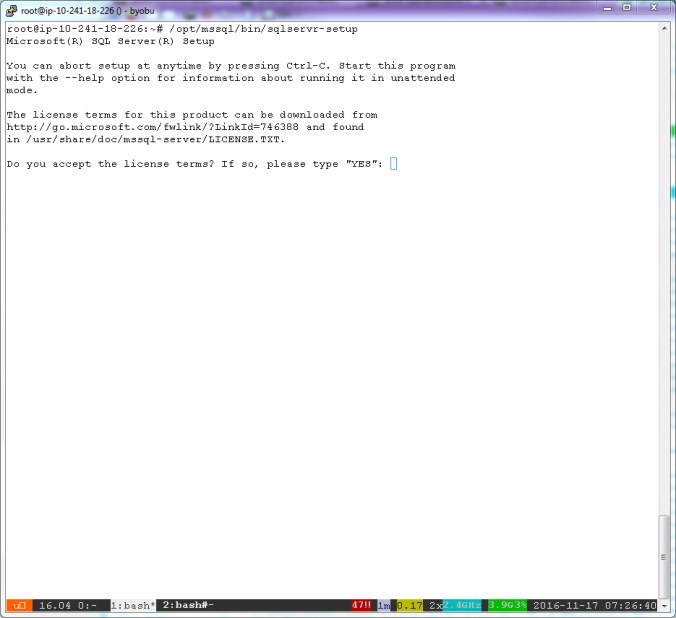
/opt/mssql/bin/sqlservr-setup

You must accept the MS License….

mssqllinux8


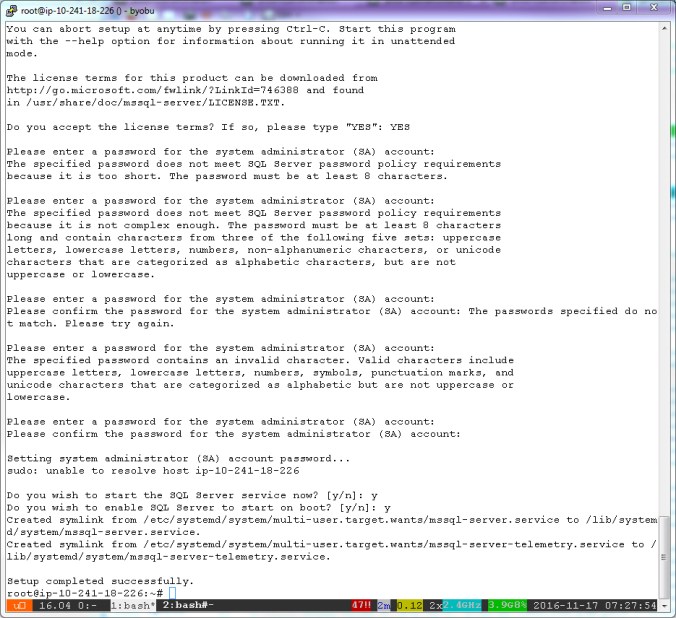
Type your Password your your SA User Account

mssqllinux9

After this your MS SQL Server is up and running under Linux


Check if the MS SQL Server is running under Linux

systemctl status mssql-server


mssqllinux10

You are looking for Logfiles, you must look in /var/log/syslog for more Information about your MS SQL Server.

Install MS SQL CLI Tools

https://docs.microsoft.com/en-us/sql/linux/sql-server-linux-setup-tools#ubuntu

Linux Server Web Access RDP

Install following packages under Ubuntu 14.04

apt-get install libssh2-1-dev   libpango1.0-dev   libossp-uuid-dev   libcairo2-dev   libpng12-dev   freerdp-x11   libssh2-1   libvncserver-dev   libfreerdp-dev   libvorbis-dev   libssh-dev   libpulse-dev   ghostscript   libjpeg62-dev   libwebp-dev xrdp

Download the tar ball

# wget http://sourceforge.net/projects/guacamole/files/current/source/guacamole-server-0.9.9.tar.gz 
# tar zxf guacamole-server-0.9.9.tar.gz

Copy the WAR File to your Tomcat

cp guacamole-0.9.9.war /tomcat/webapps/guacamole.war


Compile the software

 cd guacamole-server-0.9.9 
./configure --with-init-dir=/etc/init.d

with this options you have a init script to boot on startup


checking that generated files are newer than configure… done
configure: creating ./config.status
config.status: creating Makefile
config.status: creating tests/Makefile
config.status: creating src/common/Makefile
config.status: creating src/common-ssh/Makefile
config.status: creating src/terminal/Makefile
config.status: creating src/libguac/Makefile
config.status: creating src/guacd/Makefile
config.status: creating src/protocols/rdp/Makefile
config.status: creating src/protocols/ssh/Makefile
config.status: creating src/protocols/telnet/Makefile
config.status: creating src/protocols/vnc/Makefile
config.status: creating config.h
config.status: executing depfiles commands
config.status: executing libtool commands

————————————————
guacamole-server version 0.9.9
————————————————

Library status:

freerdp …………. yes
pango …………… yes
libssh2 …………. yes
libssl ………….. yes
libtelnet ……….. no
libVNCServer …….. no
libvorbis ……….. yes
libpulse ………… yes
libwebp …………. yes

Protocol support:

RDP ……. yes
SSH ……. yes
Telnet …. no
VNC ……. no

Init scripts: /etc/init.d

Type “make” to compile guacamole-server.


make and make install


Libraries have been installed in:
/usr/local/lib

If you ever happen to want to link against installed libraries
in a given directory, LIBDIR, you must either use libtool, and
specify the full pathname of the library, or use the `-LLIBDIR’
flag during linking and do at least one of the following:
– add LIBDIR to the `LD_LIBRARY_PATH’ environment variable
during execution
– add LIBDIR to the `LD_RUN_PATH’ environment variable
during linking
– use the `-Wl,-rpath -Wl,LIBDIR’ linker flag
– have your system administrator add LIBDIR to `/etc/ld.so.conf’

See any operating system documentation about shared libraries for
more information, such as the ld(1) and ld.so(8) manual pages.
———————————————————————-
make[2]: Nothing to be done for `install-data-am’.
make[2]: Leaving directory `/opt/guacamole-server-0.9.9/src/protocols/ssh’
make[1]: Leaving directory `/opt/guacamole-server-0.9.9/src/protocols/ssh’
make[1]: Entering directory `/opt/guacamole-server-0.9.9′
make[2]: Entering directory `/opt/guacamole-server-0.9.9′
make[2]: Nothing to be done for `install-exec-am’.
make[2]: Nothing to be done for `install-data-am’.
make[2]: Leaving directory `/opt/guacamole-server-0.9.9′
make[1]: Leaving directory `/opt/guacamole-server-0.9.9′


update caches

ldconfig


add to autostart at boot

update-rc.d guacd defaults


Now Configure your Tomcat

Set Guacamole Home Directory in your setenv.sh from Tomcat

export GUACAMOLE_HOME=/home/guacamole/


Edit your User Mapping

/home/guacamole/etc/user-mapping.xml

<user-mapping>
<authorize
username=”remote”
password=”1234″
encoding=”md5″>
<connection name=”RDP Jmeter”>
<protocol>rdp</protocol>
<param name=”hostname”>10.241.19.58</param>
<param name=”port”>3389</param>
</connection>
</authorize>
</user-mapping>


Configure your Guacamole.properties

guacd-hostname: localhost
guacd-port: 4822
user-mapping: /home/guacamole/etc/user-mapping.xml
auth-provider: net.sourceforge.guacamole.net.basic.BasicFileAuthenticationProvider
basic-user-mapping: /home/guacamole/etc/user-mapping.xml
enable-clipboard-integration: true


Modify your /etc/rrdp/xrdp.ini to Connect to the same session everytime

[xrdp1]
name=sesman-Xvnc
lib=libvnc.so
username=ask
password=ask
ip=127.0.0.1
port=5910


Reconnect for XRDP

Xrdp Tip – How to reconnect to the “same” remote session


XRDP Install

Ubuntu 14.04 – How to install xrdp in Ubuntu 14.04

More Links that i used for my installation

Setting Up Web-Based Guacamole Tool to Access Remote Linux/Windows Machines

http://blog.sjas.de/posts/guacamole-home-folder-location.html

https://znil.net/index.php?title=Ubuntu_14.04.x_LTS_-_Guacamole_HTML5_Remotedesktop_Gateway_installieren_mit_Apache_Reverse_Proxy

https://zerick.me/?p=234


AWS Import / Export DUMPS from RDS MySQL

So when you are exporting a MySQL Dump from RDS in AWS and Import to another RDS Instace, you are becoming an error by importing your dump file.

Access denied; you need the SUPER privilege for this operation

https://forums.aws.amazon.com/message.jspa?messageID=183618


Export your MySQL to a Dump

 mysqldump -h mydb.tasdasdasd.eu-central-1.rds.amazonaws.com -u my_qa -p my_q > my_qa.sql

In your exported dump file


/*!50003 CREATE*//*!50017 DEFINER=`root`@`localhost`*//*!50003TRIGGER temp_product_feature_insert

root@localhost is your enemy 😀


Modify your Dump

Import your MySQL Dump after modify with set to your target RDS instance

You must replace it with sed

sed -e 's/DEFINER=`.*`@`.*`/DEFINER=CURRENT_USER /g' my_qasql > fixed_my_qa.sql

This change all entry´s to

/*!50003 CREATE*/ /*!50017 DEFINER=CURRENT_USER */ /*!50003 TRIGGER temp_product_feature_insert


Import your MySQL Dump after modify with set to your target RDS instance

mysql -h myprod.dfsfsdfe3.eu-central-1.rds.amazonaws.com -u my_prod -p myproddb_p  < fixed_my_qa.sql


Create a LVM Volume with XFS Fileystem

Install needed tools

apt-get install xfsprogs lvm2

Prepare your Volume and Create a Logical Volume

root@domain.com:/# pvcreate /dev/xvdf
Physical volume “/dev/xvdf” successfully created
root@domain.com:/# vgcreate data /dev/xvdf
Volume group “data” successfully created
root@domain.com:/# lvcreate -l+100%FREE -n vault data
Logical volume “vault” created


Format your LVM Volume

oot@domain.com:/# mkfs.xfs -f /dev/mapper/data-vault
meta-data=/dev/mapper/data-vault isize=256 agcount=4, agsize=32767744 blks
= sectsz=512 attr=2, projid32bit=0
data = bsize=4096 blocks=131070976, imaxpct=25
= sunit=0 swidth=0 blks
naming =version 2 bsize=4096 ascii-ci=0
log =internal log bsize=4096 blocks=63999, version=2
= sectsz=512 sunit=0 blks, lazy-count=1
realtime =none extsz=4096 blocks=0, rtextents=0


Mount your Volume

root@domain.com:/# mount -t xfs /dev/mapper/data-vault /data
root@domain.com:/# df -Th /data/
Filesystem Type Size Used Avail Use% Mounted on
/dev/mapper/data-vault xfs 500G 33M 500G 1% /data
root@domain.com:/#


Mount Volume on Boot

vim /etc/fstab
 
 
/dev/mapper/data-vault /data     xfs    defaults,discard        0 0


GlusterFS a little How to

Add more nodes to your peer

gluster peer probe glusterfs-2.domain.com
gluster peer probe glusterfs-3.domain.com


Check is your Cluster up and running


root@glusterfs-1:~# gluster peer status
Number of Peers: 2
Hostname: glusterfs-3.domain.com
Uuid: c87cbd29-0751-4dce-bf7b-119cbdba0334
State: Peer in Cluster (Connected)
Hostname: glusterfs-2.domain.com
Uuid: b940937d-b9b3-402a-a38b-245db929e481
State: Peer in Cluster (Connected)


Check your Cluster Volume status


root@-glusterfs-1:~# gluster volume status hybrisdata
Status of volume: hybrisdata
Gluster process                             TCP Port  RDMA Port  Online  Pid
------------------------------------------------------------------------------
Brick glusterfs-1.doamin.com:/opt/data
/hybrisdata                                 N/A       N/A        N       N/A
Brick glusterfs-2.domain.com:/opt/data
/hybrisdata                                 N/A       N/A        N       N/A
Brick glusterfs-3.domain.com:/opt/data
/hybrisdata                                 N/A       N/A        N       N/A
Self-heal Daemon on localhost               N/A       N/A        Y       1243
Self-heal Daemon on glusterfs-3.domain.com  N/A       N/A     Y       1350
Self-heal Daemon on glusterfs-2.domain.com
                                        N/A       N/A        Y       1245
Task Status of Volume hybrisdata
------------------------------------------------------------------------------
There are no active volume tasks


Show more Details


root@glusterfs-3:/data/hybrisdata# gluster volume status hybrisdata detail
Status of volume: hybrisdata
——————————————————————————
Brick : Brick glusterfs-1.domain.com:/data/hybrisdata
TCP Port : 49153
RDMA Port : 0
Online : Y
Pid : 1924
File System : xfs
Device : /dev/mapper/data-vault
Mount Options : rw,discard
Inode Size : 256
Disk Space Free : 18.7GB
Total Disk Space : 20.0GB
Inode Count : 20967424
Free Inodes : 20685863
——————————————————————————
Brick : Brick glusterfs-2.domain.com:/data/hybrisdata
TCP Port : 49153
RDMA Port : 0
Online : Y
Pid : 2362
File System : xfs
Device : /dev/mapper/data-vault
Mount Options : rw,discard
Inode Size : 256
Disk Space Free : 18.6GB
Total Disk Space : 20.0GB
Inode Count : 20967424
Free Inodes : 20685863
——————————————————————————
Brick : Brick glusterfs-3.domain.com:/data/hybrisdata
TCP Port : 49153
RDMA Port : 0
Online : Y
Pid : 2348
File System : xfs
Device : /dev/mapper/data-vault
Mount Options : rw,discard
Inode Size : 256
Disk Space Free : 18.6GB
Total Disk Space : 20.0GB
Inode Count : 20967424
Free Inodes : 20685861


Gluster Pool Overview


root@qa-glusterfs-1:/data/hybrisdata# gluster pool list
UUID Hostname State
c87cbd29-0751-4dce-bf7b-119cbdba0334 glusterfs-3.domain.com Connected
b940937d-b9b3-402a-a38b-245db929e481 glusterfs-2.domain.com Connected
17ffa661-2165-41a7-a7c8-0dbdab8e191f localhost Connected


Add a Volume to your Cluster

root@qa-glusterfs-1:/opt/data# mkdir hybrisdata
root@qa-glusterfs-1:/opt/data# gluster volume create hybrisdata replica 3 transport tcp glusterfs-1.domain.com:/opt/data/hybrisdata glusterfs-2.domain.com:/opt/data/hybrisdata glusterfs-3.domain.com:/opt/data/hybrisdata
volume create: hybrisdata: success: please start the volume to access data


Start a Volume

root@glusterfs-1:/opt/data# gluster volume start hybrisdata
volume start: hybrisdata: success


Delete a Volume


root@glusterfs-3:~# gluster volume stop testvol
Stopping volume will make its data inaccessible. Do you want to continue? (y/n) yes
volume stop: testvol: success
root@glusterfs-3:~# gluster volume delete testvol
Deleting volume will erase all information about the volume. Do you want to continue? (y/n) y
volume delete: testvol: success


Gluster Volume Mount from Cluster Peer

mount -t glusterfs glusterfs-1.domain.com:/hybrisdata /mnt
mount -t glusterfs glusterfs-2.domain.com:/hybrisdata /mnt
mount -t glusterfs glusterfs-3.domain.com:/hybrisdata /mnt


GlusterFS DNS RoundRobin

Add a DNS Entry to your DNS Server

glusterfs.domain are following 3 entrys with glusterfs-1.domain.com, glusterfs-2.domain.com, glusterfs-3.domain.com

Your Client will Access glusterfs.domain:/hybrisdata and the DNS Server is responding every request with an other glusterfs server.


Mount GlusterFS from a Client

Install Client Tools

add-apt-repository ppa:gluster/glusterfs-3.8
apt-get update
apt-get install glusterfs-client


Edit your FSTAB Entry

vim /etc/fstab

add

glusterfs.domain:/hybrisdata /mnt  glusterfs defaults,_netdev 0 0