Connected Cache adjust docker network

Docker defaults to using certain IP ranges (172.17.0.0/16) which can conflict with internal network infrastructure. Here’s how to solve this issue without rebuilding your Azure IoT Edge containers.

We delete not the conainters we only adjust the network that is the way to go.

Modify Docker daemon.json configuration

Edit your /etc/docker/daemon.json

{
  "bip": "192.168.100.1/24",
  "default-address-pools": [
    {"base": "192.168.101.0/24", "size": 24}
  ]
  // Keep your existing configuration options
}

Restart docker

systemctl restart docker

Adjust the docker network

# Create new network (will use your custom IP range)
docker network create azure-iot-edge-new

# Connect containers to new network
docker network connect azure-iot-edge-new edgeHub
docker network connect azure-iot-edge-new MCC
docker network connect azure-iot-edge-new edgeAgent

# Disconnect from old network
docker network disconnect azure-iot-edge edgeHub
docker network disconnect azure-iot-edge MCC
docker network disconnect azure-iot-edge edgeAgent

# Delete the old network
docker network rm azure-iot-edge

Check if all works as expected

# show ip address from the new network
docker network inspect azure-iot-edge-new

# check if all conainers have a new ip
docker inspect edgeHub | grep -A 20 "Networks"
docker inspect MCC | grep -A 20 "Networks"
docker inspect edgeAgent | grep -A 20 "Networks"

# check if the conainters can ping each other
docker exec edgeHub ping -c 3 MCC
docker exec MCC ping -c 3 edgeHub

# check container status
docker ps

# check container logs
docker logs edgeHub | tail -30
docker logs MCC | tail -30
docker logs edgeAgent | tail -30

# check if iotedge works
iotedge list
iotedge check

This approach allows you to change your Docker networking without rebuilding containers – particularly useful for special deployments like Azure IoT Edge where container recreation is complex.

Enhancing ASR Rule Visibility with Custom KQL Queries

The Challenge: ASR Rule Blocking a Legitimate UEFI Firmware Update

Recently, I encountered an issue where a legitimate UEFI firmware update was blocked by an Attack Surface Reduction (ASR) rule on a notebook. The ASR rule, designed to block vulnerable signed drivers, flagged the firmware update as a potential threat. However, the incident was not visible in the Microsoft Defender console, making it difficult to identify and respond to the issue promptly. This lack of visibility posed a significant challenge, as it delayed troubleshooting and resolution.

The Solution: Custom KQL Query and Notification Rule

To address this issue and ensure that similar incidents would be visible in the future, I created a custom KQL query to monitor ASR rule events related to vulnerable signed drivers. I also enabled a custom detection rule to trigger notifications whenever such events occur. Here’s the KQL query I used:

DeviceEvents
| where ActionType in ("AsrVulnerableSignedDriverAudited", "AsrVulnerableSignedDriverBlocked")
| project
    DeviceId,
    Timestamp,
    ReportId,
    DeviceName,
    ActionType,
    FileName,
    InitiatingProcessAccountName
| order by Timestamp desc

Breaking Down the Query

  • DeviceEvents: This table contains all device-related events in Microsoft Defender.
  • ActionType filter: The query filters for ASR rule events specifically related to vulnerable signed drivers, including:
    • "AsrVulnerableSignedDriverAudited": Events where the ASR rule audited the action but did not block it.
    • "AsrVulnerableSignedDriverBlocked": Events where the ASR rule actively blocked the action.
  • project: This step selects only the relevant fields for analysis, such as DeviceId, Timestamp, DeviceName, ActionType, and FileName.
  • order by Timestamp desc: Ensures the most recent events appear at the top for easier monitoring.

Implementing the Notification Rule

https://learn.microsoft.com/en-us/defender-xdr/custom-detection-rules
After creating the query, I set up a custom detection rule in the Microsoft Defender portal to ensure timely notifications for similar incidents in the future. Here’s how I did it:

  1. Navigate to Advanced Hunting: In the Microsoft Defender portal, go to the “Advanced Hunting” section.
  2. Run the Query: Test the KQL query to ensure it retrieves the desired results.
  3. Create a Custom Detection Rule:
    • Click “Create detection rule.”
    • Paste the KQL query into the rule configuration.
    • Set the rule to run at Continuous (NRT) – Runs continuously, checking data from events as they’re collected and processed in near real-time (NRT)
    • Configure the severity level (e.g., Medium or High for blocked events).
  4. Enable Notifications: Configure the rule to send notifications

The Outcome

Once the custom detection rule was enabled, I started receiving notifications for ASR rule events related to vulnerable signed drivers. This allowed me to quickly identify the blocked UEFI firmware update and take appropriate action.

Lessons Learned

  1. Visibility is Critical: Even when ASR rules are functioning as intended, the lack of visibility into blocked events can hinder troubleshooting and response. Custom KQL queries and notification rules are essential for bridging this gap.
  2. Understand ASR Rules: ASR rules are highly effective at blocking malicious activity, but they can occasionally block legitimate actions, such as firmware updates. It’s important to understand the rules in place and their potential impact on your environment.

Conclusion

By leveraging custom KQL queries and detection rules, you can enhance your organization’s visibility into ASR rule events and ensure timely responses to legitimate actions that may be blocked. If you’re managing ASR rules in Microsoft Defender, consider implementing a similar approach to improve your incident detection and response capabilities. This proactive step will help you maintain a balance between security and operational efficiency.

scaleway rclone s3 example

If you are searching for an alternative for Backblaze Backup. You can try rclone with s3 storage from Scaleway.

In these Blogpost you can find out how to install and configure it. But how to use it? I have some example for you.

https://www.scaleway.com/en/docs/tutorials/encrypt-s3-data-rclone/

https://www.scaleway.com/en/docs/storage/object/api-cli/installing-rclone/

Thats for a Windows machine, on Linux only other path K:test = /home/ubuntu/myfiles

rclone sync --progress K:\test Scaleway:allmybackup

If you want to store your data directly in to the GLACIER storage you can use

rclone sync --progress --s3-storage-class=GLACIER K:\test Scaleway:allmybackup

or you can configre rclone directly to use GLACIER directy without define storage class

Simple example if you are using encryption with rclone

rclone sync --progress K:\test crypt:

Now we have more options for bandwith usage

Attention rclone is using Megabyte not Megabit 1M are 8Mbit

rclone sync --progress --log-file=rclone_log.txt --bwlimit "06:00,2M 23:00,4M" K:\test crypt:

windows start service without admin rights

In the Windows environment, certain tasks require administrative privileges to be performed. However, starting a service doesn’t always require such privileges. This post will guide you through a simple solution that allows you to start a service without administrator rights.

Introduction

Normally, to start or stop a service in Windows, you’d need to have administrative rights. This can pose a challenge if you don’t have these permissions. But don’t worry, there are many ways to overcome this issue.

The Solution: Service Security Editor

During my search for a solution, I came across a very handy tool called the Service Security Editor on a Stack Overflow post.

The Service Security Editor is an easy-to-use tool that provides a graphical user interface (GUI) to configure access rights. With it, you can grant specific users the ability to start or stop services without giving them full administrative rights. It’s a powerful tool for managing service permissions in a granular way.

You can download the Service Security Editor from the official website.

Here’s a brief guide on how to use the Service Security Editor:

Choose your user: First, select the user account that you want to grant permissions to.

Define permissions: Next, configure what actions this user should be able to perform. In this case, we’re granting the user the ability to start and stop services.

Now, the selected user can start and stop services without needing administrative rights.

Create ISO file with powershell

Create a file with name createiso.ps1 and fill this code into it.

function New-IsoFile 
{  
  <# .Synopsis Creates a new .iso file .Description The New-IsoFile cmdlet creates a new .iso file containing content from chosen folders .Example New-IsoFile "c:\tools","c:Downloads\utils" This command creates a .iso file in $env:temp folder (default location) that contains c:\tools and c:\downloads\utils folders. The folders themselves are included at the root of the .iso image. .Example New-IsoFile -FromClipboard -Verbose Before running this command, select and copy (Ctrl-C) files/folders in Explorer first. .Example dir c:\WinPE | New-IsoFile -Path c:\temp\WinPE.iso -BootFile "${env:ProgramFiles(x86)}\Windows Kits\10\Assessment and Deployment Kit\Deployment Tools\amd64\Oscdimg\efisys.bin" -Media DVDPLUSR -Title "WinPE" This command creates a bootable .iso file containing the content from c:\WinPE folder, but the folder itself isn't included. Boot file etfsboot.com can be found in Windows ADK. Refer to IMAPI_MEDIA_PHYSICAL_TYPE enumeration for possible media types: http://msdn.microsoft.com/en-us/library/windows/desktop/aa366217(v=vs.85).aspx .Notes NAME: New-IsoFile AUTHOR: Chris Wu LASTEDIT: 03/23/2016 14:46:50 #> 
   
  [CmdletBinding(DefaultParameterSetName='Source')]Param( 
    [parameter(Position=1,Mandatory=$true,ValueFromPipeline=$true, ParameterSetName='Source')]$Source,  
    [parameter(Position=2)][string]$Path = "$env:temp\$((Get-Date).ToString('yyyyMMdd-HHmmss.ffff')).iso",  
    [ValidateScript({Test-Path -LiteralPath $_ -PathType Leaf})][string]$BootFile = $null, 
    [ValidateSet('CDR','CDRW','DVDRAM','DVDPLUSR','DVDPLUSRW','DVDPLUSR_DUALLAYER','DVDDASHR','DVDDASHRW','DVDDASHR_DUALLAYER','DISK','DVDPLUSRW_DUALLAYER','BDR','BDRE')][string] $Media = 'DVDPLUSRW_DUALLAYER', 
    [string]$Title = (Get-Date).ToString("yyyyMMdd-HHmmss.ffff"),  
    [switch]$Force, 
    [parameter(ParameterSetName='Clipboard')][switch]$FromClipboard 
  ) 
  
  Begin {  
    ($cp = new-object System.CodeDom.Compiler.CompilerParameters).CompilerOptions = '/unsafe' 
    if (!('ISOFile' -as [type])) {  
      Add-Type -CompilerParameters $cp -TypeDefinition @'
public class ISOFile  
{ 
  public unsafe static void Create(string Path, object Stream, int BlockSize, int TotalBlocks)  
  {  
    int bytes = 0;  
    byte[] buf = new byte[BlockSize];  
    var ptr = (System.IntPtr)(&bytes);  
    var o = System.IO.File.OpenWrite(Path);  
    var i = Stream as System.Runtime.InteropServices.ComTypes.IStream;  
   
    if (o != null) { 
      while (TotalBlocks-- > 0) {  
        i.Read(buf, BlockSize, ptr); o.Write(buf, 0, bytes);  
      }  
      o.Flush(); o.Close();  
    } 
  } 
}  
'@  
    } 
   
    if ($BootFile) { 
      if('BDR','BDRE' -contains $Media) { Write-Warning "Bootable image doesn't seem to work with media type $Media" } 
      ($Stream = New-Object -ComObject ADODB.Stream -Property @{Type=1}).Open()  # adFileTypeBinary 
      $Stream.LoadFromFile((Get-Item -LiteralPath $BootFile).Fullname) 
      ($Boot = New-Object -ComObject IMAPI2FS.BootOptions).AssignBootImage($Stream) 
    } 
  
    $MediaType = @('UNKNOWN','CDROM','CDR','CDRW','DVDROM','DVDRAM','DVDPLUSR','DVDPLUSRW','DVDPLUSR_DUALLAYER','DVDDASHR','DVDDASHRW','DVDDASHR_DUALLAYER','DISK','DVDPLUSRW_DUALLAYER','HDDVDROM','HDDVDR','HDDVDRAM','BDROM','BDR','BDRE') 
  
    Write-Verbose -Message "Selected media type is $Media with value $($MediaType.IndexOf($Media))"
    ($Image = New-Object -com IMAPI2FS.MsftFileSystemImage -Property @{VolumeName=$Title}).ChooseImageDefaultsForMediaType($MediaType.IndexOf($Media)) 
   
    if (!($Target = New-Item -Path $Path -ItemType File -Force:$Force -ErrorAction SilentlyContinue)) { Write-Error -Message "Cannot create file $Path. Use -Force parameter to overwrite if the target file already exists."; break } 
  }  
  
  Process { 
    if($FromClipboard) { 
      if($PSVersionTable.PSVersion.Major -lt 5) { Write-Error -Message 'The -FromClipboard parameter is only supported on PowerShell v5 or higher'; break } 
      $Source = Get-Clipboard -Format FileDropList 
    } 
  
    foreach($item in $Source) { 
      if($item -isnot [System.IO.FileInfo] -and $item -isnot [System.IO.DirectoryInfo]) { 
        $item = Get-Item -LiteralPath $item
      } 
  
      if($item) { 
        Write-Verbose -Message "Adding item to the target image: $($item.FullName)"
        try { $Image.Root.AddTree($item.FullName, $true) } catch { Write-Error -Message ($_.Exception.Message.Trim() + ' Try a different media type.') } 
      } 
    } 
  } 
  
  End {  
    if ($Boot) { $Image.BootImageOptions=$Boot }  
    $Result = $Image.CreateResultImage()  
    [ISOFile]::Create($Target.FullName,$Result.ImageStream,$Result.BlockSize,$Result.TotalBlocks) 
    Write-Verbose -Message "Target image ($($Target.FullName)) has been created"
    $Target
  } 
} 

After file creation, you must import this module to your open powershell session.

Import-Module .\createiso.ps1

Now you can define on powershell your source folder

$source_dir = "Z:\isofilel\"

We can create our ISO file
get-childitem "$source_dir" | New-ISOFile -path C:\iso\mydmz.iso
Confluence alternative

What a incredible e-mail from Atlassian, cloud first. Not everyone wants to use the cloud. I worked with Confluence and Jira over ten years now. Time for alternative Wikis. I am a little bit sad about the cloud first strategy. Confluence and Jira are pretty cool tools.
Time for alternative Wiki´s

https://wiki.js.org/

This Wiki very close to Confluence. But one feature is missing

https://wiki.js.org/feedback/p/multi-sites

Multi Sites

BlueSpice based on MediaWiki but it have a lot more features and a good Editor.

bluespice.com

Multi Sites only available in the enterprise version.

Also look at tiki.org but is more than a wiki

For Jira alternative

I found

http://www.tuleap.org or https://www.openproject.org

MultiPoint Services Role in Windows Server 2016

rlevchenko's avatarUseIT | Roman Levchenko

multipoint_services_windows_server_2016_10

Introduction

MultiPoint Server (MPS) is a technology and solution based on Windows Server and Remote Desktop Services. MPS was originally built for use in the classrooms and educational institutions and It allows you to provide low-cost sharing between MPS and user stations. User stations can be consist of only monitor, keyboard, mouse (zero clients) and be connected to MPS through USB (usb hubs), video cables or through LAN (RDP-over-LAN, if clients are not zero. for example, laptops, thin clients and etc..).  MPS uses some of the RDS services (by default): RD Session Host and RD Licensing Server.

First version of MPS was released in February, 2010 . In MPS 2010 you can connect stations and host only through USB hubs and video ports.

Ability to use LAN between user stations and MPS was added only to the next version – MPS 2011 released in March, 2011.

Some of the main features of…

View original post 1,110 more words

Xen vhd to vmdk

Converting from a Xen Server to a VMWARE Server isn´t easy. Normal you can use VMWARE Converter it works fine with Windows. Linux loves Clonezilla but only with one disk. My situation is a Linux vm with multiple disk with LVM.

What we need:

  • QEMU disk image utility for Windows

https://cloudbase.it/qemu-img-windows/

  • enough disk space
  • winscp
  • putty


Shutdown your vm. Login to your xen machine and figure out which disk you need.

See  “How to find the disk associated to a VM from XenServer CLI”
https://support.citrix.com/article/CTX217612

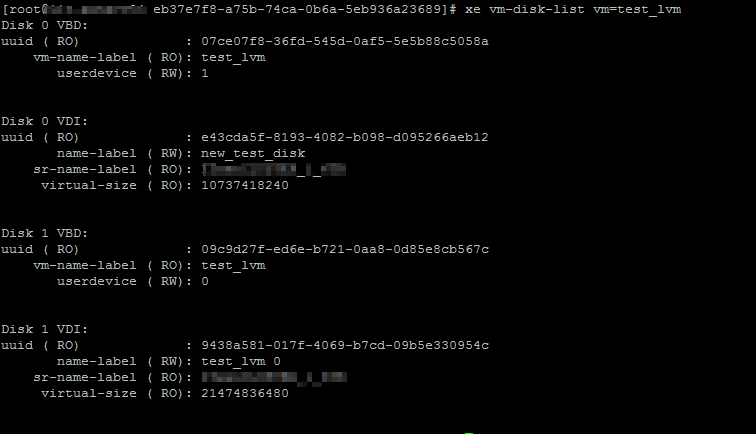
xe vm-disk-list vm=test_lvm

xen_list_disk.png

copy the vhd files that you found with vm-disk-list to your migration machine.


I have used the powershell to convert my two vhd disk

.\qemu-img.exe convert -f vpc 9438a581-017f-4069-b7cd-09b5e330954c.vhd -O vmdk test_lvm_sda1.vmdk -p

2018-09-27 13_18_28-pc-678 - Remotedesktopverbindung.png

It takes a few minute. After migration copy your new vmdk file to your vmware storage.

Attach the disk to your vm and choose IDE and not SCSI. Note the sequence from your old xen disk. Should be in the same order

fire it up 🙂


vmware converter permission to perform this operation was denied

User Account Control: Run all administrators in Admin Approval Mode

This affects how UAR works and can block remote local admin connections.
This can be changed in Local Computer Policy | Computer Configuration | Windows Settings | Security Settings | Local Policies | Security Options
Set it to Disabled, requires a reboot


2018-09-07 13_16_33-XenCenter.png


found here

https://www.jonathanmedd.net/2013/12/vmware-converter-permission-to-perform-this-operation-was-denied.html