Ich glaube ich spinne, irgendwie habe ich keine gute Anleitung bei mir im Blog gefunden.
Dann nochmals neu!
Mit lsblk schauen
lsblk
pvcreate /dev/xvdg
ihr müsst den Namen der Volume Group des LVM wissen, hier wird die Platte der LVM Group zugewiesen.
vgextend data /dev/xvdg
Volume group “data” successfully extended
Hier erweitern wir das LVM Group Volume um 100%, es wäre auch möglich etwas Reserver zu lassen.
lvextend -l+100%FREE /dev/mapper/data-vault
Extending logical volume vault to 999.99 GiB
Logical volume vault successfully resized
Da wir hier ein XFS als Datei System nutzen, sind die Kommandos auch etwas anders
xfs_growfs /dev/mapper/data-vault
meta-data=/dev/mapper/data-vault isize=256 agcount=4, agsize=32767744 blks
= sectsz=512 attr=2
data = bsize=4096 blocks=131070976, imaxpct=25
= sunit=0 swidth=0 blks
naming =version 2 bsize=4096 ascii-ci=0
log =internal bsize=4096 blocks=63999, version=2
= sectsz=512 sunit=0 blks, lazy-count=1
realtime =none extsz=4096 blocks=0, rtextents=0
data blocks changed from 131070976 to 262141952
resize2fs -p /dev/mapper/data-vault bei einem ext4 filesystem
A nice how to for apt
Ich bin gerade über das tolle Github Projekt gestolpert!
https://github.com/mail-in-a-box/mailinabox
What can you do for this issue?
https://www.bountysource.com/issues/31271515-vs-code-not-working-on-ubuntu-when-connected-using-xrdp
make a backup of this file
do this as root
- sed -i ‘s/BIG-REQUESTS/_IG-REQUESTS/’ /usr/lib/x86_64-linux-gnu/libxcb.so.1
Now you can install a MS SQL Server under Linux.
More here
https://docs.microsoft.com/en-us/sql/linux/sql-server-linux-setup
Following these Steps
Import GPG Keys
curl https://packages.microsoft.com/keys/microsoft.asc | apt-key add –
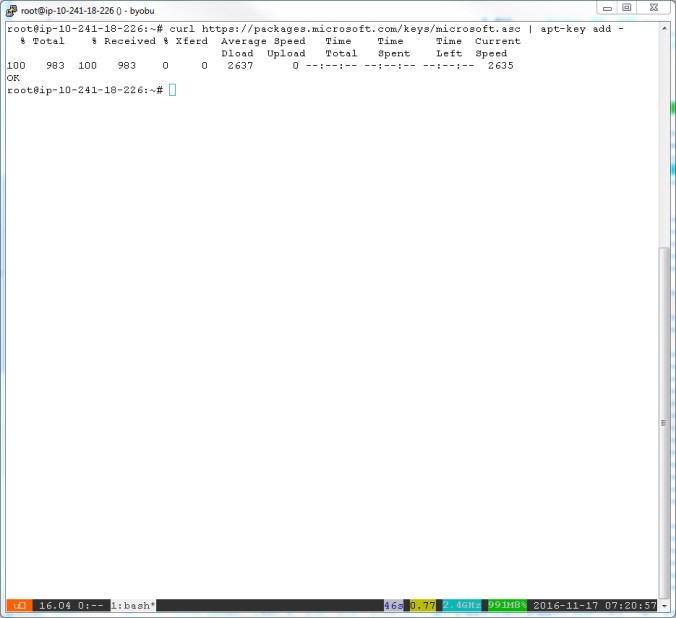
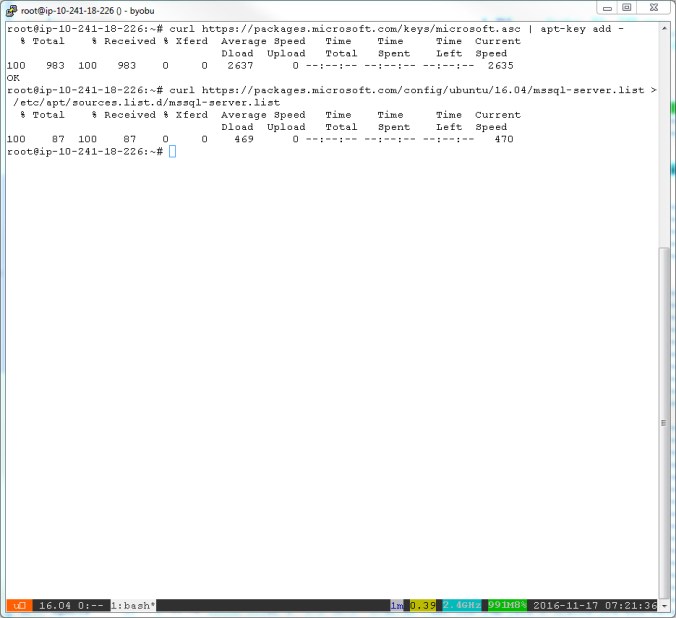
Add MS SQL Server to your Repository
curl https://packages.microsoft.com/config/ubuntu/16.04/mssql-server.list > /etc/apt/sources.list.d/mssql-server.list
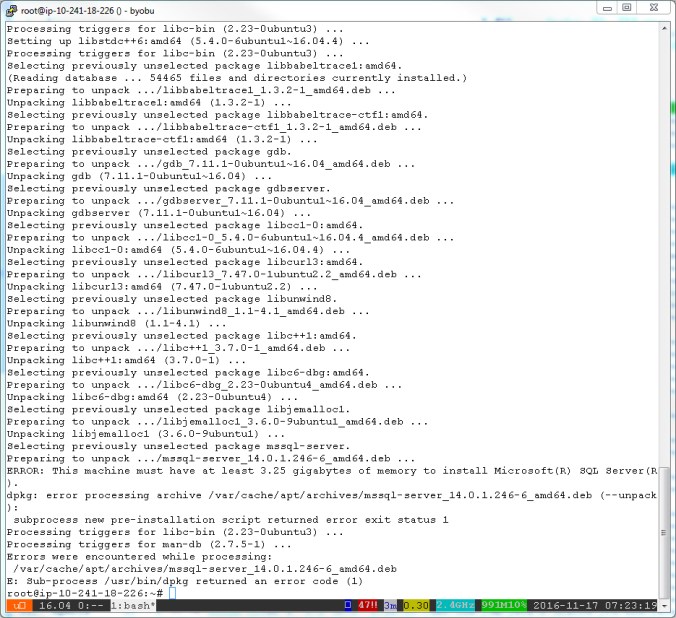
Install MS SQL Server, Attention your Machine needs 4 GB of RAM
apt-get update
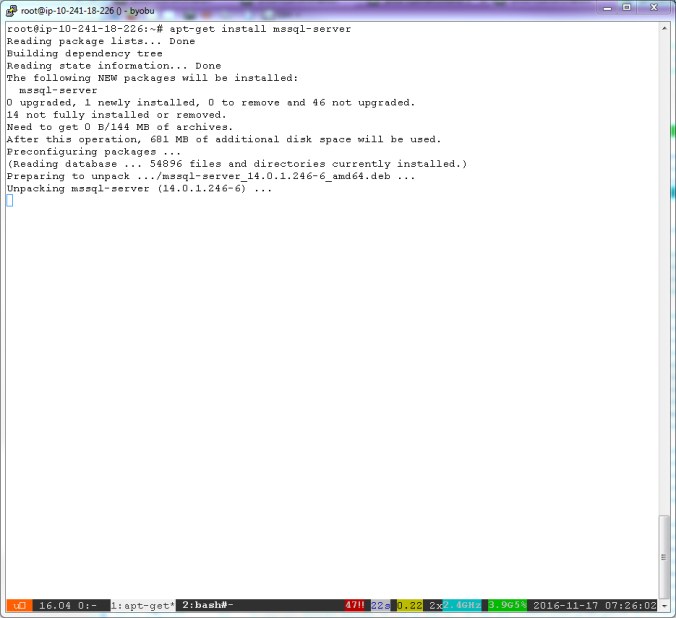
apt-get install mssql-server


Installation is aborted, when you have less than 4 GB in your System
After Upgrading my Machine with more RAM, the installation is up and running

Start your MS SQL Server under Linux
/opt/mssql/bin/sqlservr-setup
You must accept the MS License….
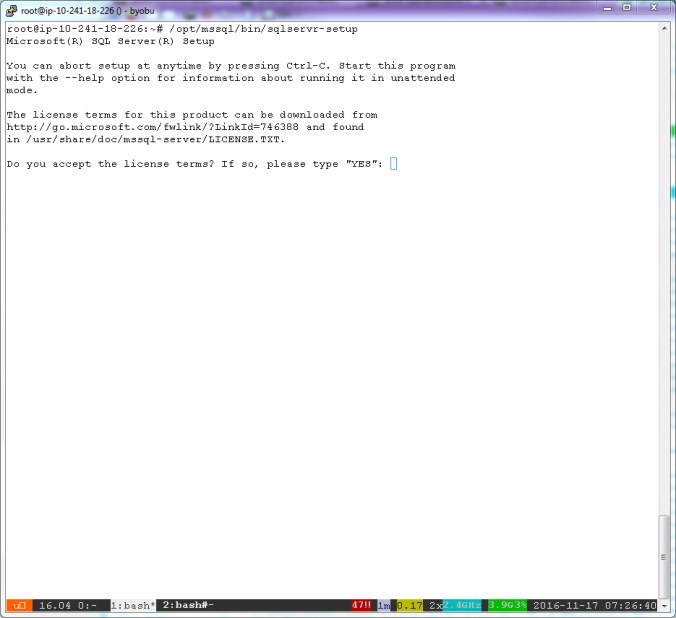
Type your Password your your SA User Account
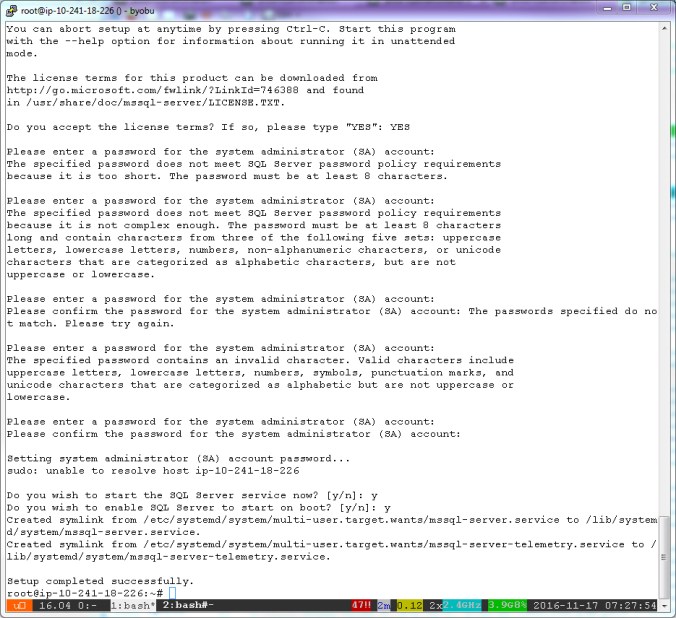
After this your MS SQL Server is up and running under Linux
Check if the MS SQL Server is running under Linux
systemctl status mssql-server

You are looking for Logfiles, you must look in /var/log/syslog for more Information about your MS SQL Server.
Install MS SQL CLI Tools
https://docs.microsoft.com/en-us/sql/linux/sql-server-linux-setup-tools#ubuntu
# nginx -t
nginx: [emerg] could not build the variables_hash, you should increase either variables_hash_max_size: 512 or variables_hash_bucket_size: 64
nginx: configuration file /etc/nginx/nginx.conf test failed
add to your nginx.conf following entry
variables_hash_max_size 1024;
found here
 Konkretor Blog, IT Stuff and more