Connected Cache adjust docker network

Docker defaults to using certain IP ranges (172.17.0.0/16) which can conflict with internal network infrastructure. Here’s how to solve this issue without rebuilding your Azure IoT Edge containers.

We delete not the conainters we only adjust the network that is the way to go.

Modify Docker daemon.json configuration

Edit your /etc/docker/daemon.json

{
  "bip": "192.168.100.1/24",
  "default-address-pools": [
    {"base": "192.168.101.0/24", "size": 24}
  ]
  // Keep your existing configuration options
}

Restart docker

systemctl restart docker

Adjust the docker network

# Create new network (will use your custom IP range)
docker network create azure-iot-edge-new

# Connect containers to new network
docker network connect azure-iot-edge-new edgeHub
docker network connect azure-iot-edge-new MCC
docker network connect azure-iot-edge-new edgeAgent

# Disconnect from old network
docker network disconnect azure-iot-edge edgeHub
docker network disconnect azure-iot-edge MCC
docker network disconnect azure-iot-edge edgeAgent

# Delete the old network
docker network rm azure-iot-edge

Check if all works as expected

# show ip address from the new network
docker network inspect azure-iot-edge-new

# check if all conainers have a new ip
docker inspect edgeHub | grep -A 20 "Networks"
docker inspect MCC | grep -A 20 "Networks"
docker inspect edgeAgent | grep -A 20 "Networks"

# check if the conainters can ping each other
docker exec edgeHub ping -c 3 MCC
docker exec MCC ping -c 3 edgeHub

# check container status
docker ps

# check container logs
docker logs edgeHub | tail -30
docker logs MCC | tail -30
docker logs edgeAgent | tail -30

# check if iotedge works
iotedge list
iotedge check

This approach allows you to change your Docker networking without rebuilding containers – particularly useful for special deployments like Azure IoT Edge where container recreation is complex.

Mastering URL Allow Lists in Microsoft Edge

URL allow lists are a crucial part of managing web access in enterprise environments, but they can be tricky to configure correctly, especially when it comes to handling subdomains in Microsoft Edge via Intune. Let’s dive into a common issue that many IT administrators face and its surprisingly simple solution.

The Challenge

Imagine you’re managing a corporate environment where you need to allow access to multiple subdomains. For example:

  • app1.contoso.com
  • app2.contoso.com
  • app3.contoso.com
  • portal.contoso.com

The Common Mistake

Most administrators’ first instinct is to use wildcards, resulting in something like:

*.contoso.com

This seems logical, but if you’ve tried this in Edge’s URL Allow List policy, you’ve probably found that it doesn’t work as expected. Your websites remain blocked, and you’re left wondering what went wrong.

The Solution

Here’s the surprising part: the solution is simpler than you might think. Instead of using wildcards, you just need to list the base domain:

contoso.com

This single entry automatically allows:

  • The base domain (contoso.com)
  • All subdomains (www.contoso.com, app.contoso.com)
  • Even nested subdomains (test.app.contoso.com)

The Dot Prefix: Exact Matching

Sometimes you want to match only a specific domain without including its subdomains. For this, add a dot prefix:

.portal.example.com

This matches only that exact domain, not its subdomains.

Practical Configuration Examples

Here’s how to structure your allow list properly:

# Allow all subdomains
example.com
contoso.com

# Exact matches only
.portal.example.net
.login.contoso.com

# IP addresses (wildcards still work here)
172.16.*
192.168.*

Best Practices

  1. Avoid using wildcards (*) for domains
  2. Use the base domain to allow all subdomains
  3. Add a dot prefix for exact domain matches
  4. Keep IP address wildcards as they are
  5. Document your URL patterns for future reference

Important Notes

  • IP addresses are the only place where wildcards still work as expected
  • The dot prefix method is particularly useful for specific service endpoints
  • This behavior is specific to Edge’s URL Allow List policy in Intune

Final Thoughts

Understanding how Edge’s URL filtering works can save you hours of troubleshooting and configuration time. Sometimes the simplest solution is the most effective one – in this case, less really is more.

Have you encountered similar issues with URL allow lists? How did you handle them? Share your experiences in the comments below!

Understanding and Fixing Git SSL Certificate Issues in Corporate Environments

If you’re working in a corporate environment and seeing Git SSL certificate errors, you’re likely dealing with SSL inspection (also known as SSL interception or HTTPS inspection) at your company’s firewall. Let’s understand what’s happening and how to fix it.

The Real Problem

When you see this error:

git/': SSL certificate problem: unable to get local issuer certificate

In a corporate environment, this happens because:

  1. Your company’s firewall is performing SSL inspection
  2. The firewall decrypts and re-encrypts all HTTPS traffic
  3. Git doesn’t trust the certificate used by the firewall for re-encryption

What is SSL Inspection?

In corporate environments, security teams implement SSL inspection to:

  • Monitor all encrypted traffic for security threats
  • Prevent data leaks
  • Detect malware in encrypted connections

This process works by:

  1. Intercepting the HTTPS connection
  2. Decrypting the traffic at the firewall
  3. Inspecting the contents
  4. Re-encrypting with the company’s own certificate
  5. Forwarding to your computer

The Solution

1. Get Your Company’s Root Certificate

First, you need to obtain your company’s root certificate:

  • Ask your IT department for the corporate root certificate
  • They might call it “SSL inspection certificate” or “HTTPS inspection certificate”
  • Sometimes it’s automatically deployed via group policy

2. Install the Certificate

For Windows:

# Add the certificate to the Windows certificate store, only needed if no certificate is distributed from the IT department
certutil -addstore -f "ROOT" company-root-cert.crt

# Configure Git to use Windows certificate store, this step is mandatory
git config --global http.sslbackend schannel

For Linux:

# Copy the certificate
sudo cp company-root-cert.crt /usr/local/share/ca-certificates/
sudo update-ca-certificates

# Configure Git to use the system certificate store
git config --global http.sslcainfo "/etc/ssl/certs/ca-certificates.crt"

3. Verify the Configuration

Test your setup with:

git ls-remote https://github.com/any-repo/any-project.git

Common Pitfalls to Avoid

  1. Don’t Disable SSL Verification
   # DON'T do this - it's unsafe
   git config --global http.sslVerify false
  1. Don’t Use Generic Online Solutions
  • Many online solutions suggest downloading certificates from public sources
  • These won’t work with corporate SSL inspection
  • Always use your company’s certificates

For System Administrators

If you’re managing this for your organization:

  1. Group Policy Distribution
  • Deploy the corporate root certificate via GPO
  • Configure Git settings automatically
  • Document the certificate location
  1. Documentation for Developers
  • Provide clear instructions for certificate installation
  • Include troubleshooting steps
  • List supported Git versions

Security Considerations

Understanding what’s happening:

  • Your traffic is decrypted at the corporate firewall
  • This is normal and secure within corporate networks
  • The company certificate creates a new trusted chain
  • All internal systems need to trust this certificate

Troubleshooting Steps

If you’re still having issues:

  1. Verify Certificate Installation
  • Check if the certificate appears in your system’s trust store
  • Ensure it’s in the correct store (usually “Trusted Root Certification Authorities”)
  1. Test Basic Connectivity
   curl -v https://github.com

Conclusion

SSL certificate issues in corporate environments are usually related to SSL inspection at the firewall level. The solution is not to bypass security but to properly configure Git to trust your company’s certificates.

Remember:

  • Always use your company’s certificates
  • Never disable SSL verification
  • Keep your certificates updated
  • Contact IT if you need the correct certificates

Has this helped you resolve your Git SSL issues in your corporate environment? Share your experience in the comments!


How to Fix pip SSL Certificate Verification Errors in Python

Having trouble installing Python packages with pip? Getting that frustrating SSL certificate verification error? You’re not alone. In this post, I’ll explain what’s causing this common issue and show you how to fix it quickly and securely.

The Problem

When trying to install Python packages using pip, you might encounter this error:

SSLError(SSLCertVerificationError(1, '[SSL: CERTIFICATE_VERIFY_FAILED] 
certificate verify failed: unable to get local issuer certificate (_ssl.c:1129)'))

This error occurs when pip cannot verify the SSL certificate of PyPI (Python Package Index) servers. It’s a security feature meant to protect you from potential man-in-the-middle attacks, but it can be frustrating when you’re just trying to install packages.

Understanding the Cause

This issue typically happens because:

  1. Your system’s SSL certificates are not up to date
  2. The SSL certificates are missing entirely
  3. Your system can’t locate the certificate store

The Solution

There are several ways to resolve this issue. I’ll present them in order of recommended approach:

1. Install System Certificates (Recommended)

The most secure and recommended solution is to install the system certificates:

pip install pip-system-certs

This package ensures pip uses your system’s certificate store, which is typically more secure and up-to-date.

2. Configure Trusted Hosts

If the above solution doesn’t work, you can explicitly tell pip to trust PyPI’s hosts:

pip config --global set global.trusted-host "pypi.org files.pythonhosted.org"

Or use it directly in your pip install command:

pip install --trusted-host pypi.org --trusted-host files.pythonhosted.org <package-name>

3. Update Your Certificates

On some systems, you might need to update your certificate store:

  • Windows: Update Windows and Python to the latest version
  • macOS: Run the “Install Certificates.command” in your Python folder
  • Linux: Update ca-certificates package:
  sudo apt-get update
  sudo apt-get install ca-certificates

Best Practices and Security Considerations

While the trusted-host approach works, it’s important to understand that it bypasses SSL verification. This should only be used in controlled environments where you’re certain about the security of your network.

Always prefer using proper SSL certificates when possible, as they provide:

  • Protection against man-in-the-middle attacks
  • Verification of package source authenticity
  • Secure encrypted communication

Alternative Solutions

If you’re working in a corporate environment, you might also:

  1. Configure pip to use your corporate proxy
  2. Set up a local PyPI mirror
  3. Use a custom certificate authority

Conclusion

SSL certificate errors can be frustrating, but they exist for a good reason – your security. The recommended approach is to install system certificates using pip-system-certs. If that doesn’t work, configuring trusted hosts is a quick fix, but remember to consider the security implications.

Remember: Security features like SSL verification are there to protect you and your code. While it might be tempting to disable them, it’s always better to fix the underlying certificate issues properly.

Have you encountered other pip-related issues? Let me know in the comments below!


Posting Images to Twitter Using the New API: A Guide

Understanding the TweepyV2Images Repository

“TweepyV2Images” is a GitHub repository designed to work with the new Twitter API. It uses Python and the Tweepy library, making it accessible for a wide range of users, from beginners to seasoned developers.

https://github.com/jorgez19/TweepyV2Images

Video Tutorial

For a more interactive guide, there’s a YouTube tutorial that comprehensively demonstrates the process from setup to posting images.

You have to install and configure tweepy correct before you can use this helpful script.

import tweepy

# Enter API tokens below
bearer_token = ''
consumer_key = ''
consumer_secret = ''
access_token = ''
access_token_secret = ''

# V1 Twitter API Authentication
auth = tweepy.OAuthHandler(consumer_key, consumer_secret)
auth.set_access_token(access_token, access_token_secret)
api = tweepy.API(auth, wait_on_rate_limit=True)

# V2 Twitter API Authentication
client = tweepy.Client(
    bearer_token,
    consumer_key,
    consumer_secret,
    access_token,
    access_token_secret,
    wait_on_rate_limit=True,
)

# Upload image to Twitter. Replace 'filename' with your image filename.
media_id = api.media_upload(filename="your_image.jpg").media_id_string
print(media_id)

# Text to be Tweeted
text = "Hello Twitter!"

# Send Tweet with Text and media ID
client.create_tweet(text=text, media_ids=[media_id])
print("Tweeted!")

I used this script today to post every few hours a new tweet. Please go to the github or yt channel and give them great man a like or comment for his work.

Check Failover Status in ISC-DHCP Server: A Detailed Guide

In today’s interconnected world, ensuring high availability of services like DHCP is crucial. ISC-DHCP server, a popular choice for managing network addresses, supports a failover mechanism. This blog post will guide you through the process of checking the synchronization status between primary and secondary servers in a failover configuration.

Setting Up Failover in dhcpd.conf

Before diving into the synchronization status, let’s set up the failover in the dhcpd.conf file. Here, you need to specify the OMAPI port, which is used for management tasks such as checking the failover status. An example configuration is shown below:
omapi-port 7911;

Restart the Service

sudo systemctl restart isc-dhcp-server

Using omshell to Check Failover Status

start the omshell

omshell

and use following commands

server localhost
connect
new failover-state
set name = "internal-network"
open

important note set name , this is your failover name that is defined in the dhcpd.conf
the two important lines from the output above are these

partner-state = 00:00:00:02
local-state = 00:00:00:02

Understanding the Failover Status Output

What is the meaning of this hexadecimal values, if you have other values than 02, than you should check deeper whats wrong.
Indicates the present state of the DHCP server in this failover relationship. Possible values for state are:

1 – startup
2 – normal
3 – communications interrupted
4 – partner down
5 – potential conflict
6 – recover
7 – paused
8 – shutdown
9 – recover done
10 – resolution interrupted
11 – conflict done
254 – recover wait

You can find this in the documentations also
https://kb.isc.org/docs/isc-dhcp-44-manual-pages-dhcpd

cheap homelab server

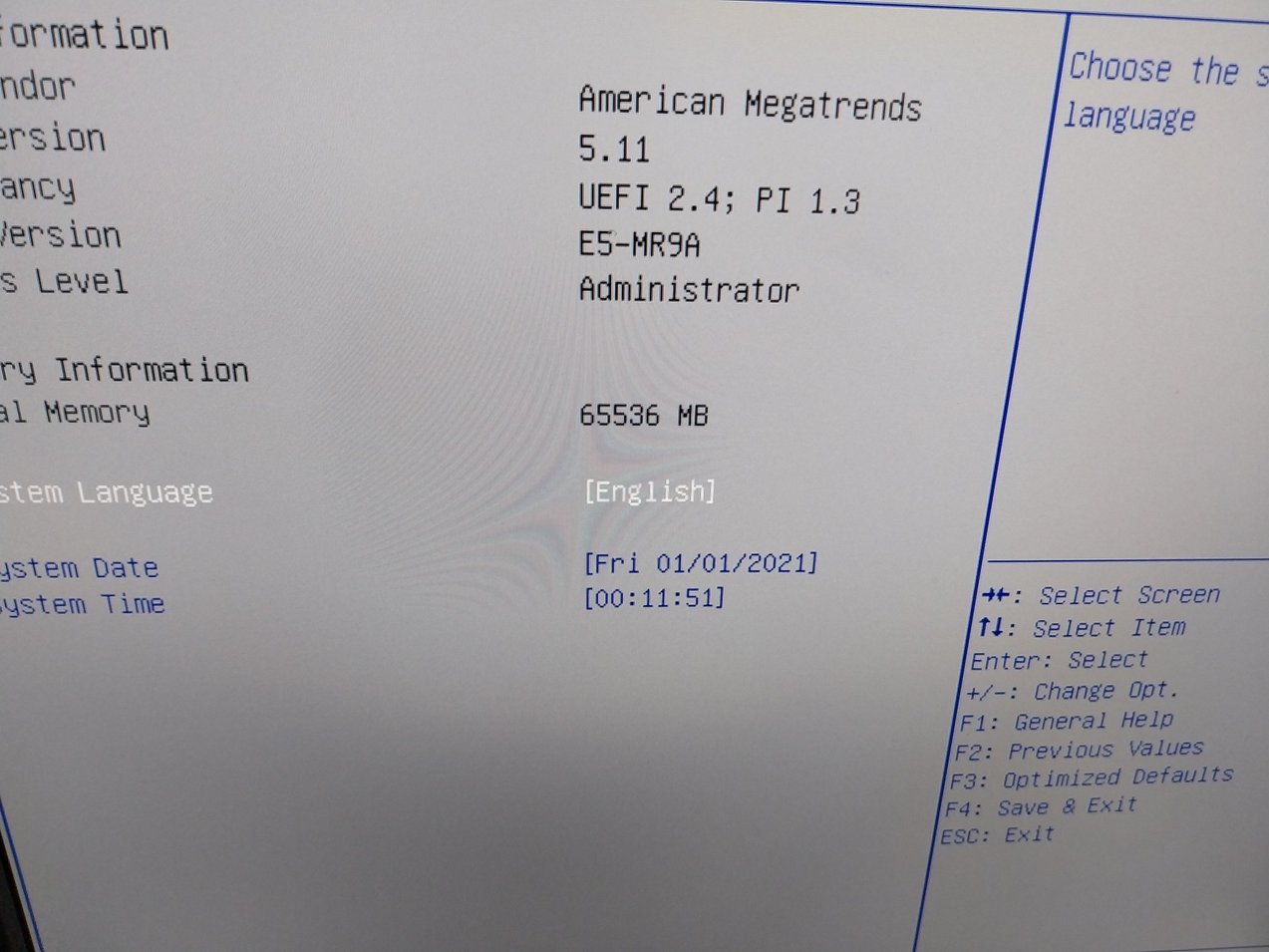
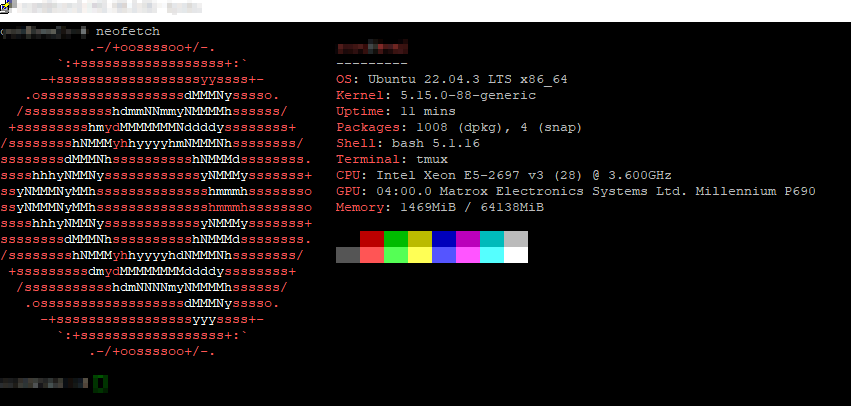
In this blog post, I’m sharing my experience in assembling a budget-friendly yet powerful system designed for demanding virtualization tasks. This is a server with 28 threads more than enough for most tasks. I chose the 2011-3 platform because there are some really exciting motherboards from China.

The Mainboard: Machinist MR9A The cornerstone of my project is the Machinist MR9A Mainboard, purchased for 55 on AliExpress. This mainboard offers two M.2 slots for additional storage expansion – perfect for systems with high storage demands. It supports PCIe 3.0, ensuring high data transfer rates and compatibility with newer hardware components. The chipset is specifically designed for Intel Xeon processors of the E5-2600 V3/V4 series, making it an excellent choice for my purpose.

Memory: Crucial DDR4-2133 DIMM The backbone of the memory system consists of four 16GB Crucial DDR4-2133 DIMM modules (CT16G4RFD4213), providing a total of 64GB of capacity. Acquired for 40 on eBay, they offer ample resources for virtualization tasks.

The CPU: Intel Xeon E5-2697V3 The Intel Xeon SR1XF E5-2697V3 processor, a component of the Haswell-EP generation, features 14 cores and a base frequency of 2.60 GHz. It’s notable for offering 40 PCIe 3.0 lanes, providing vast expansion capabilities and flexibility for system builds. The processor’s detailed specifications can be viewed on Intel’s ARK page. This CPU was purchased for 23.50.

Storage: Utilizing Existing SSDs For storage, I’m using my existing M.2 SSDs – one 1TB and a 256GB version – which provide ample space for virtual machines and data. The system disk is an older 256GB SATA SSD, which is sufficiently fast for the system’s needs. While there are plans to upgrade to a larger M.2 SSD in the future, these current storage solutions are more than adequate for the initial setup.

Graphics: Matrox Millennium P690 A Matrox P69-MDDE128LA1F Millennium P690 graphics card with 128Mb GDDR2 was selected for its minimal PCIe usage, freeing up remaining slots for SSDs. The cost: 15.

Cooling: Be quiet! AIO A Be quiet! AIO water cooler for 25 ensures the CPU remains efficiently cooled under load. That was new old stock from a friend.

Case and Power Supply To house the components, I used a case I already had. Additionally, a pre-owned FSP 500 power supply was utilized for this build. Both of these components were leftovers from previous projects, contributing to the cost-effectiveness of this setup.

Software: Ubuntu 22.04 LTS and KVM with Libvirt On the software side, the server runs Ubuntu 22.04 LTS, a robust and stable operating system ideal for server environments. Virtualization is managed using KVM with Libvirt, providing a powerful and flexible platform for running multiple virtual machines.

Conclusion: This system demonstrates that with a budget of under 160, one can build a powerful virtualization system. The upcoming weeks will show how it performs in practice.

Summary of Components and Prices:

  • Mainboard: Machinist MR9A (with 2x M.2 slots, PCIe 3.0, Intel Xeon-compatible chipset) – 55
  • Memory: 4x Crucial 16GB DDR4-2133 DIMM – 40
  • CPU: Intel Xeon E5-2697V3 – 23.50
  • Graphics: Matrox Millennium P690 – 15
  • Cooling: Be quiet! AIO – 25

Total cost: approximately 158.50

Some picture for how looks like the cheap home lab setup

jenkins you have requested strict checking ssh git server issue

Jenkins sometimes a little bit strange but it works at is.

you have addes a new ssh key and you got following error “you have requested strict checking”

Under configuration “Global Security” scroll down and choose what you need

look a the screen snipet, this config works well.

https://docs.cloudbees.com/docs/cloudbees-ci-kb/latest/client-and-managed-masters/host-key-verification-for-ssh-agents

https://issues.jenkins.io/browse/JENKINS-43062