Check Failover Status in ISC-DHCP Server: A Detailed Guide

In today’s interconnected world, ensuring high availability of services like DHCP is crucial. ISC-DHCP server, a popular choice for managing network addresses, supports a failover mechanism. This blog post will guide you through the process of checking the synchronization status between primary and secondary servers in a failover configuration.

Setting Up Failover in dhcpd.conf

Before diving into the synchronization status, let’s set up the failover in the dhcpd.conf file. Here, you need to specify the OMAPI port, which is used for management tasks such as checking the failover status. An example configuration is shown below:
omapi-port 7911;

Restart the Service

sudo systemctl restart isc-dhcp-server

Using omshell to Check Failover Status

start the omshell

omshell

and use following commands

server localhost
connect
new failover-state
set name = "internal-network"
open

important note set name , this is your failover name that is defined in the dhcpd.conf
the two important lines from the output above are these

partner-state = 00:00:00:02
local-state = 00:00:00:02

Understanding the Failover Status Output

What is the meaning of this hexadecimal values, if you have other values than 02, than you should check deeper whats wrong.
Indicates the present state of the DHCP server in this failover relationship. Possible values for state are:

1 – startup
2 – normal
3 – communications interrupted
4 – partner down
5 – potential conflict
6 – recover
7 – paused
8 – shutdown
9 – recover done
10 – resolution interrupted
11 – conflict done
254 – recover wait

You can find this in the documentations also
https://kb.isc.org/docs/isc-dhcp-44-manual-pages-dhcpd

cheap homelab server

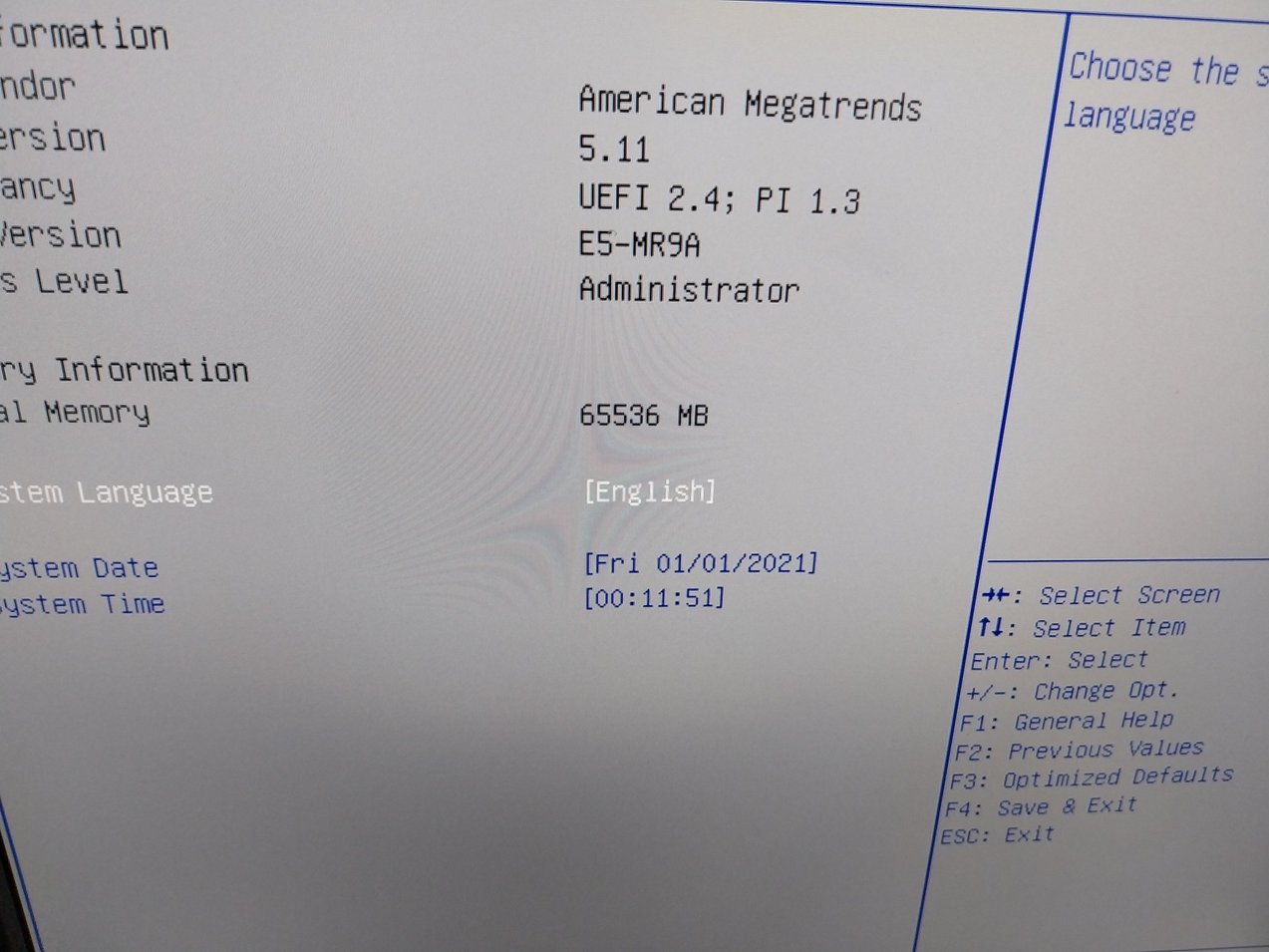
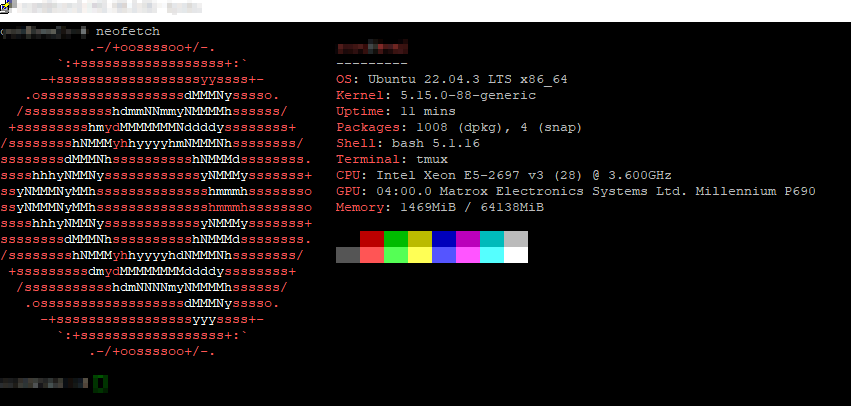
In this blog post, I’m sharing my experience in assembling a budget-friendly yet powerful system designed for demanding virtualization tasks. This is a server with 28 threads more than enough for most tasks. I chose the 2011-3 platform because there are some really exciting motherboards from China.

The Mainboard: Machinist MR9A The cornerstone of my project is the Machinist MR9A Mainboard, purchased for 55 on AliExpress. This mainboard offers two M.2 slots for additional storage expansion – perfect for systems with high storage demands. It supports PCIe 3.0, ensuring high data transfer rates and compatibility with newer hardware components. The chipset is specifically designed for Intel Xeon processors of the E5-2600 V3/V4 series, making it an excellent choice for my purpose.

Memory: Crucial DDR4-2133 DIMM The backbone of the memory system consists of four 16GB Crucial DDR4-2133 DIMM modules (CT16G4RFD4213), providing a total of 64GB of capacity. Acquired for 40 on eBay, they offer ample resources for virtualization tasks.

The CPU: Intel Xeon E5-2697V3 The Intel Xeon SR1XF E5-2697V3 processor, a component of the Haswell-EP generation, features 14 cores and a base frequency of 2.60 GHz. It’s notable for offering 40 PCIe 3.0 lanes, providing vast expansion capabilities and flexibility for system builds. The processor’s detailed specifications can be viewed on Intel’s ARK page. This CPU was purchased for 23.50.

Storage: Utilizing Existing SSDs For storage, I’m using my existing M.2 SSDs – one 1TB and a 256GB version – which provide ample space for virtual machines and data. The system disk is an older 256GB SATA SSD, which is sufficiently fast for the system’s needs. While there are plans to upgrade to a larger M.2 SSD in the future, these current storage solutions are more than adequate for the initial setup.

Graphics: Matrox Millennium P690 A Matrox P69-MDDE128LA1F Millennium P690 graphics card with 128Mb GDDR2 was selected for its minimal PCIe usage, freeing up remaining slots for SSDs. The cost: 15.

Cooling: Be quiet! AIO A Be quiet! AIO water cooler for 25 ensures the CPU remains efficiently cooled under load. That was new old stock from a friend.

Case and Power Supply To house the components, I used a case I already had. Additionally, a pre-owned FSP 500 power supply was utilized for this build. Both of these components were leftovers from previous projects, contributing to the cost-effectiveness of this setup.

Software: Ubuntu 22.04 LTS and KVM with Libvirt On the software side, the server runs Ubuntu 22.04 LTS, a robust and stable operating system ideal for server environments. Virtualization is managed using KVM with Libvirt, providing a powerful and flexible platform for running multiple virtual machines.

Conclusion: This system demonstrates that with a budget of under 160, one can build a powerful virtualization system. The upcoming weeks will show how it performs in practice.

Summary of Components and Prices:

  • Mainboard: Machinist MR9A (with 2x M.2 slots, PCIe 3.0, Intel Xeon-compatible chipset) – 55
  • Memory: 4x Crucial 16GB DDR4-2133 DIMM – 40
  • CPU: Intel Xeon E5-2697V3 – 23.50
  • Graphics: Matrox Millennium P690 – 15
  • Cooling: Be quiet! AIO – 25

Total cost: approximately 158.50

Some picture for how looks like the cheap home lab setup